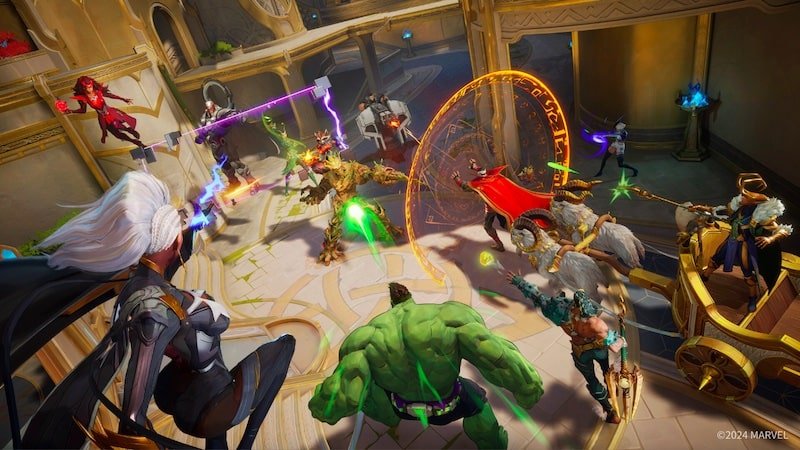
If you've been battling persistent crashes in Marvel Rivals, you're not alone. Many PC players are reporting frustrating interruptions, often without clear error messages, turning what should be a thrilling superhero showdown into a test of patience. From sudden desktop returns to freezes mid-match, these common Marvel Rivals crash fixes (general troubleshooting) are designed to get you back in the arena, stable and ready for action.
It’s disheartening when a game as exciting as Marvel Rivals keeps crashing. This comprehensive guide will walk you through the most effective troubleshooting steps, combining expert knowledge with practical, easy-to-follow instructions. We’re not just telling you what to do; we’re explaining why, so you can confidently diagnose and resolve those pesky crashes yourself.
At a Glance: Quick Fixes for Marvel Rivals Crashes
- Update Everything: Ensure Windows, your graphics drivers, and Marvel Rivals itself are all up to date.
- Check Your Drivers: Especially if you have an NVIDIA GPU or a newer Intel CPU, specific driver and BIOS adjustments can be critical.
- Manage Shaders: Incorrect shader cache settings can lead to crashes; learn how to reset and re-optimize.
- Cap Your FPS: Unbound frame rates can overstress your system; limit them and enable V-Sync.
- Revert Overclocks: Custom GPU overclocks are often culprits; return your hardware to factory settings.
- Disable Overlays: In-game overlays from Discord, Steam, or NVIDIA can conflict with the game.
- Tweak Settings: Lowering in-game graphics settings can significantly improve stability.
- Verify Game Files: Corrupted game files are a common, easy-to-fix cause of crashes.
- Clean Reinstall: When all else fails, a fresh installation can often resolve deep-seated issues.
Why Marvel Rivals Crashes: Peeking Under the Hood
Marvel Rivals, built on the powerful Unreal Engine 5, pushes PC hardware, and sometimes, that push leads to instability. The game’s multiplayer nature means a lot is happening on screen, demanding consistent performance from your CPU, GPU, and RAM.
Based on player reports and developer insights, some common culprits for crashes include:
- Incompatible Graphics Drivers: NVIDIA GPUs, in particular, have shown sensitivities to specific driver versions.
- Modern Intel CPUs: Intel's 13th and 14th generation CPUs sometimes encounter stability issues with demanding Unreal Engine 5 titles, often related to power delivery or core ratios.
- Shader Cache Problems: The game compiles "shaders" – small programs that tell your GPU how to render graphics. If this cache is too small or corrupted, crashes can occur, especially during gameplay.
- Uncapped Frame Rates: When your GPU is trying to render frames as fast as possible, it can lead to overheating, unstable performance, and crashes, especially if it exceeds your monitor's refresh rate.
- Software Conflicts: Background applications, especially in-game overlays or security software, can interfere with Marvel Rivals.
- Overclocked Hardware: While overclocking can boost performance, it introduces instability if not perfectly tuned.
- System Resource Limits: Not enough RAM, an overwhelmed CPU, or an aging GPU can all struggle to keep up with the game's demands, leading to crashes.
- Corrupted Game Files: Broken game files, perhaps from a bad download or an interrupted update, are a straightforward reason for crashes.
Understanding these underlying causes will empower you to tackle the fixes more effectively. Let's get your system primed and ready.
Getting Your PC Ready for Battle: Essential Preparatory Steps
Before diving into specific troubleshooting, it’s crucial to lay a solid foundation. Think of these as the pre-flight checks for your gaming rig—simple steps that often resolve a surprising number of issues without needing more complex solutions.
Keep Windows Up-to-Date
An outdated operating system can lead to compatibility issues, missing security patches, and suboptimal performance.
How to Do It:
- Press the
Windows key + Ito open Settings. - Go to Update & Security (or just Windows Update on Windows 11).
- Click Check for updates. Install any pending updates and restart your PC if prompted.
Ensure Graphics Drivers Are Current
Your graphics drivers are the communication bridge between your game and your GPU. Outdated or corrupt drivers are a primary source of game crashes.
How to Do It:
- NVIDIA: Visit the official NVIDIA website or use GeForce Experience (or the new NVIDIA App) to check for and install the latest "Game Ready Driver." For troubleshooting purposes, a "clean installation" is often best (select "Custom" install, then check "Perform a clean installation").
- AMD: Head to the official AMD website or use AMD Adrenalin Software to update. Again, a clean install is recommended if you're experiencing problems.
- Intel (Integrated Graphics): Visit the Intel Support Downloads page or use the Intel Driver & Support Assistant.
Even if you recently updated, sometimes reverting to a slightly older, stable driver version can help if a new one is causing issues. However, always start with the latest recommended version.
Close Unnecessary Background Applications
Every application running in the background consumes system resources (RAM, CPU cycles, GPU VRAM). Freeing up these resources can prevent Marvel Rivals from competing for them, reducing the likelihood of crashes.
How to Do It:
- Press
Ctrl + Shift + Escto open Task Manager. - Go to the Processes tab.
- Look for any non-essential applications, especially those that are resource-intensive (e.g., web browsers with many tabs, video streaming services, other game launchers, file sync services).
- Select them and click End task. Be careful not to close essential system processes.
Disable Any Hardware Overclocking
If you’ve manually overclocked your CPU, GPU, or RAM, these custom settings might be causing instability. While overclocking can yield performance gains, even a slight instability can lead to crashes in demanding games like Marvel Rivals.
How to Do It:
- CPU/RAM: You'll need to enter your PC's BIOS/UEFI settings during startup (usually by pressing
DelorF2repeatedly). Look for settings related to CPU frequency, voltage, or XMP/DOCP profiles for RAM. Revert them to their default or "auto" settings. Save changes and exit. - GPU: If you used software like MSI Afterburner or ASUS GPU Tweak, open it and revert any clock speed or voltage changes to their default profiles.
Verify Your PC Meets System Requirements
While Marvel Rivals is free-to-play, it's still an Unreal Engine 5 title. Ensure your hardware isn't below the game's minimum specifications. Trying to run a demanding game on insufficient hardware is a surefire way to encounter crashes.
Minimum System Requirements (general guidance):
- OS: Windows 10/11 64-bit
- Processor: Intel Core i5-4430 / AMD FX-6300
- Memory: 8 GB RAM
- Graphics: NVIDIA GeForce GTX 960 / AMD Radeon R9 280
- DirectX: Version 12
- Network: Broadband Internet connection
- Storage: 70 GB available space
Run a Malware Scan
Malware or viruses can hog system resources, interfere with game processes, or even corrupt game files, leading to crashes. A quick scan can rule this out.
How to Do It:
- Use Windows Security (built into Windows) or your preferred third-party antivirus software to perform a full system scan.
Free Up Disk Space
Modern games require significant disk space, not just for installation but also for temporary files, updates, and virtual memory. A drive that's too full can slow down your system and cause read/write errors.
How to Do It:
- Aim for at least 10-20 GB of free space on the drive where Marvel Rivals is installed.
- Use Windows' Disk Cleanup tool (type "Disk Cleanup" into the Start menu search) or manually uninstall old programs and delete unnecessary large files.
Update Marvel Rivals to the Latest Version
Game developers frequently release patches to fix bugs, improve performance, and enhance stability. Always ensure your game is up-to-date.
How to Do It:
- Steam: Open your Library, right-click Marvel Rivals > Properties > Updates. Ensure "Always keep this game updated" is selected.
- Epic Games Store: Open your Library. The store should automatically check for updates. You can also click the three dots next to the game and select "Manage," then ensure auto-updates are enabled.
- Microsoft Store/NetEase Launcher: The game launcher itself should manage updates. Check for a manual "Update" button if auto-updates aren't apparent.
With these foundational steps complete, your PC should be in a much better state to run Marvel Rivals. Now, let's address the more specific crash culprits.
Decoding the Crash: Specific Fixes for Marvel Rivals
These solutions tackle the issues directly reported by the Marvel Rivals community, offering targeted adjustments to get your game running smoothly.
1. Taming Your Drivers: GPU and CPU Harmony
Drivers are often the most critical, yet overlooked, components for game stability. Small issues here can lead to widespread system instability, especially for demanding titles.
NVIDIA GPU Driver: The Clean Install Method
Incompatible or partially corrupted NVIDIA drivers are a frequent cause of crashes in Unreal Engine 5 games. A "clean install" ensures all old driver files are removed, preventing conflicts.
How to Do It:
- Download Latest Driver: Go to the NVIDIA driver download page. Select your product type, series, and operating system. Download the latest "Game Ready Driver" (GRD).
- Run Installer: Double-click the downloaded driver file.
- Custom Installation: When prompted, choose Custom (Advanced) installation.
- Perform Clean Installation: On the next screen, check the box for "Perform a clean installation". This will wipe existing driver files and settings.
- Complete Installation: Follow the on-screen prompts to finish. Your screen may flicker or go black briefly during the process. Restart your PC if requested.
If the latest driver still causes issues, you might consider trying a slightly older, known-stable GRD version. Sometimes newer drivers introduce regressions.
Intel 13th & 14th Gen CPUs: BIOS and P-Core Ratio Adjustments
Intel's powerful 13th and 14th gen CPUs (Raptor Lake and Raptor Lake Refresh) have been linked to instability in some Unreal Engine 5 games, often due to how their power delivery or core ratios are handled at extreme loads.
How to Do It:
- Update Your PC's BIOS: This is often the most critical step. Your motherboard manufacturer (ASUS, MSI, Gigabyte, ASRock, etc.) regularly releases BIOS updates that improve stability and compatibility, especially for newer CPUs.
- Find your motherboard model (e.g., using CPU-Z or physically checking the board).
- Visit your motherboard manufacturer's support website.
- Download the latest BIOS version and follow their specific instructions carefully. Caution: BIOS updates can be risky if done incorrectly. Follow the manufacturer's guide precisely.
- Reduce Performance Core Ratio (if crashes persist): If a BIOS update doesn't fully resolve the issue, you may need to reduce the "Performance Core Ratio" in your BIOS. This limits how high your CPU's performance cores can boost, often stabilizing the system under heavy load.
- Enter your BIOS/UEFI settings during PC startup.
- Navigate to the CPU settings or Overclocking/Performance section (exact names vary by motherboard).
- Look for "Performance Core Ratio," "CPU Ratio," "Multiplier," or similar settings.
- Reduce the ratio: For example, if it's set to "Auto" or a high number like "55x," try reducing it to "50x" or even "48x." This slightly undervolts/underclocks the CPU, improving stability for some games.
- Shader Compilation Specifics: If you specifically crash during Marvel Rivals' shader compilation phase, temporarily reduce the P-Core Ratio, launch the game to let it compile shaders, then revert your CPU settings to default. This can help bypass the initial compilation hurdle.
- Intel XTU/MSI Core Isolation (Advanced Users): Some users have found success using Intel Extreme Tuning Utility (XTU) to adjust voltage offsets or disable specific core groups, or on MSI boards, using "CPU Lite Load" in BIOS. These are advanced steps; consult detailed guides specific to your motherboard and CPU.
Other Drivers: Chipset, Audio, and Network
While less common, outdated chipset, audio, or network drivers can also contribute to system instability.
How to Do It:
- Visit your motherboard manufacturer's support website. Find your specific motherboard model and download the latest chipset drivers, audio drivers, and network (LAN) drivers.
- Install them, restarting your PC as necessary.
2. Optimizing Your Shader Cache: Preventing Stutters and Crashes
Shaders are vital for rendering game graphics. Marvel Rivals compiles these shaders, and if the cache where they're stored isn't managed correctly, it can lead to stutters, freezes, and crashes. This is particularly relevant for NVIDIA users.
How to Do It (NVIDIA Users):
- Open NVIDIA Control Panel: Right-click on your desktop and select "NVIDIA Control Panel."
- Navigate to 3D Settings: In the left pane, click on Manage 3D Settings.
- Global Settings Tab: Ensure you're on the Global Settings tab.
- Find Shader Cache Size: Scroll down and locate the setting "Shader Cache Size."
- Disable and Apply: Click the dropdown menu, select "Disabled," and then click Apply at the bottom right.
- Restart Your PC: This is crucial to clear any existing cache.
- Re-enable and Set Size: After restarting, reopen NVIDIA Control Panel, go back to "Shader Cache Size," and this time select "10 GB" or a higher option (like "Unlimited" if available and you have ample disk space). Click Apply.
- Launch Game: Launch Marvel Rivals. It might re-compile shaders, which can take some time, but this process should now be more stable.
This process forces a clean rebuild of the shader cache, ensuring it has enough space to store all necessary shader data.
3. Capping Your Frames: The V-Sync and FPS Limiter Strategy
Running your game with an uncapped frame rate might sound appealing, but it can stress your GPU unnecessarily, cause overheating, and lead to instability and crashes, especially if your GPU is constantly trying to render hundreds of frames above your monitor's refresh rate.
How to Do It (In-Game Settings):
- Launch Marvel Rivals.
- Go to Settings (usually accessible from the main menu).
- Navigate to the Display or Graphics tab.
- Enable V-Sync: Look for "V-Sync" (Vertical Synchronization) and turn it On. V-Sync synchronizes your game's frame rate with your monitor's refresh rate (e.g., 60Hz monitor = 60 FPS cap), preventing screen tearing and reducing GPU load.
- Use In-Game FPS Limiter: If V-Sync doesn't cap your FPS effectively or you prefer a different limit:
- Find the "Limit FPS" option and enable it.
- Use the "FPS Cap" slider or input field to set a maximum frame rate. A good starting point is 60 FPS, or slightly below your monitor's refresh rate (e.g., 140 FPS for a 144Hz monitor).
- For G-Sync/FreeSync Displays: If you have an adaptive sync monitor and use V-Sync, consider setting your in-game FPS cap to 1/2, 1/3, or 1/4 of your display's refresh rate (e.g., for a 144Hz monitor, try 72 FPS or 48 FPS). This can provide an even smoother experience by keeping frames within the adaptive sync window and preventing frame drops.
Limiting your FPS reduces the workload on your GPU and CPU, leading to lower temperatures, less power consumption, and significantly improved stability.
4. Reverting Overclocks: Stabilizing Your Graphics Card
While boosting your GPU's clock speeds can provide extra frames, it also pushes your hardware beyond its factory-tested limits. If not perfectly stable, even minor overclocks can lead to crashes in demanding games like Marvel Rivals.
How to Do It:
NVIDIA GPUs: Using Debug Mode
NVIDIA's Control Panel offers a "Debug" mode that forces your GPU to run at NVIDIA-recommended factory clock speeds, effectively undoing any software-based overclocks.
- Open NVIDIA Control Panel (right-click on your desktop).
- In the top menu, click Help.
- Select "Debug mode".
Once checked, your GPU will run at reference speeds until you uncheck it or restart your PC (it's often a temporary setting). For a permanent solution, you'd need to uninstall or reset any third-party overclocking software you're using.
AMD GPUs: Adjusting in Adrenalin Software
AMD users can revert overclocks through the Adrenalin Software.
- Open AMD Adrenalin Software (right-click on your desktop and select "AMD Software: Adrenalin Edition").
- Go to the Performance tab.
- Select the Tuning sub-tab.
- Under "Manual Tuning," ensure you've selected "Custom" (if you were previously overclocking).
- Enable "GPU Tuning" and "Advanced Control."
- Slightly move the "Maximum Frequency" slider to the left to match the reference frequencies for your specific GPU model. You can usually find these online by searching for "[Your GPU Model] reference clock speeds." A difference of 50-100 MHz below your previous overclocked setting, or matching factory defaults, is often sufficient.
- Apply your changes.
If you used a third-party tool like MSI Afterburner, open it and click the "Reset" button (usually a circular arrow icon) to revert all settings to default, then close the application.
5. Disabling In-Game Overlays: Clearing the Path for Smooth Gameplay
In-game overlays, while convenient for quick access to chat or monitoring performance, can sometimes conflict with Marvel Rivals, leading to crashes, performance issues, or input lag. These overlays inject themselves into the game process, and a compatibility glitch can be all it takes.
How to Do It:
Discord Overlay:
- Open Discord.
- Click on the User Settings (gear icon) in the bottom left.
- Scroll down to App Settings and select Game Overlay.
- Toggle off "Enable In-game Overlay."
Steam Overlay:
- Open Steam.
- Go to Steam (top left menu) > Settings.
- Select the In-Game tab.
- Uncheck the box that says "Enable the Steam overlay while in-game."
- You can also disable it for Marvel Rivals specifically: Right-click Marvel Rivals in your Steam Library > Properties > General > uncheck "Enable the Steam Overlay while in-game."
GeForce Experience / NVIDIA App Overlay:
- Open GeForce Experience (or the new NVIDIA App).
- Click the Gear icon (Settings) in the top right.
- Under the General section, toggle off "IN-GAME OVERLAY." (In the new NVIDIA App, it's under Settings > Features > NVIDIA Overlay).
Other Overlays:
If you use other applications with overlays (e.g., Xbox Game Bar, EA App, Ubisoft Connect), consider disabling their overlays as well if you continue to experience crashes. You can often find these settings within the respective application's settings menu.
6. Resolving Software Conflicts & Compatibility
Sometimes, other software on your PC can conflict with Marvel Rivals, causing it to crash. Security software is a common culprit, as is the operating system's compatibility layer.
Temporarily Disable Security Software
Antivirus programs or firewalls can sometimes mistakenly flag game files or processes as threats, interfering with their operation.
How to Do It:
- Temporarily disable your antivirus software: Most antivirus programs have an option to "Pause Protection" or "Disable for X minutes" by right-clicking their icon in the system tray.
- Temporarily disable Windows Defender Firewall:
- Type "Windows Defender Firewall" into the Start menu search and open it.
- Click "Turn Windows Defender Firewall on or off" on the left.
- Select "Turn off Windows Defender Firewall" for both Private and Public networks.
- Important: Re-enable your security software immediately after testing the game. Running without protection leaves your PC vulnerable.
If disabling your security software resolves the crashes, you'll need to add Marvel Rivals (and its game launcher) as an exception or whitelist in your antivirus/firewall settings.
Run in Compatibility Mode
This classic troubleshooting step forces an application to run as if it were on an older version of Windows, which can sometimes bypass compatibility issues with newer OS features.
How to Do It:
- Locate the Marvel Rivals shortcut on your desktop, or navigate to the game's installation folder and find the main executable file (e.g.,
MarvelRivals.exe). - Right-click on the shortcut/executable and select Properties.
- Go to the Compatibility tab.
- Check the box for "Run this program in compatibility mode for:"
- From the dropdown menu, select an earlier Windows version, such as Windows 10, Windows 8, or even Windows 7.
- Click Apply, then OK.
- Launch the game to test if the crashes persist. If this doesn't help, uncheck the box to revert.
7. Adjust In-Game Settings: Lowering the Load
If your system is borderline on meeting the requirements or if crashes are due to resource saturation, simply lowering some of the demanding graphics settings within the game can make a huge difference in stability.
How to Do It (In-Game Settings):
- Launch Marvel Rivals.
- Go to Settings > Display or Graphics tab.
- Start with presets: Many games offer "Low," "Medium," "High," and "Ultra" presets. Try setting the overall Graphics Quality to "Low" or "Medium" first.
- Individual settings to target for reduction:
- Resolution: Lowering the game's resolution (e.g., from 4K to 1440p, or 1080p to 900p) has a dramatic impact on GPU load.
- Shadow Quality: Shadows are often one of the most performance-intensive settings. Lowering this can yield significant gains.
- Reflections: Real-time reflections also demand a lot from your GPU.
- Anti-Aliasing: While it smooths jagged edges, different anti-aliasing methods (e.g., MSAA, TAA) can be very demanding. Try lower settings or turn it off if you're desperate.
- Texture Quality: Lowering this reduces VRAM usage.
- Post-Processing Effects: Effects like bloom, motion blur, and depth of field can add to the load.
- View Distance: Reducing how far details are rendered can help, though it might impact gameplay in some cases.
Adjust settings one by one or in small groups, testing the game after each change to pinpoint which setting has the most impact on stability. Sometimes, optimizing graphics settings can even prevent the need for more complex fixes, especially if you're dealing with issues where Marvel Rivals is crashing with frame generation enabled, indicating a general struggle with high-performance modes.
8. Verify Integrity of Game Files: The Digital Clean-Up
Game files can become corrupted or go missing due to incomplete downloads, disk errors, or even unexpected system shutdowns. When essential game files are compromised, the game simply won't run correctly, leading to crashes. This is a common and often quick fix.
How to Do It:
Steam:
- Open your Steam Library.
- Right-click on Marvel Rivals in your game list.
- Select Properties.
- Go to the Local Files tab.
- Click the button that says "Verify Integrity of Game Files..."
- Steam will scan your game files and download any corrupted or missing ones. This process can take several minutes.
Epic Games Store:
- Open your Epic Games Store Launcher.
- Go to your Library.
- Find Marvel Rivals and click the three dots (...) next to its title.
- From the dropdown menu, select "Verify."
- The launcher will check and repair any discrepancies.
9. The Last Resort: A Clean Reinstallation of Marvel Rivals
If you've tried everything above and Marvel Rivals continues to crash, a complete, clean reinstallation is often the most effective solution. This ensures you start with a fresh, uncorrupted copy of the game, free from any lingering problematic files or settings.
How to Do It:
1. Uninstall the Game:
- Windows 10/11: Press
Windows key + Ito open Settings > Apps > Apps & features. Find Marvel Rivals in the list, click on it, and select Uninstall. - Alternatively, go to Control Panel > Programs > Programs and Features, find Marvel Rivals, and click Uninstall.
- Through Launcher (Recommended): Most game launchers (Steam, Epic Games Store) offer an uninstall option directly from the library. This is often the cleanest way to begin.
2. Manually Delete Remaining Files:
Even after an uninstall, some residual files (configuration, cache, save data) might remain, especially in hidden AppData folders. Deleting these ensures a truly clean slate.
- Press
Windows key + Rto open the Run dialog. - Type
%localappdata%and press Enter. This opensC:\Users\[YourUsername]\AppData\Local. Look for a folder named "MarvelRivals" and delete it entirely. - Repeat the process, but type
%appdata%and press Enter. This opensC:\Users\[YourUsername]\AppData\Roaming. Look for a folder named "MarvelRivals" and delete it. - Also, check the main installation directory where the game was installed (e.g.,
C:\Program Files (x86)\Steam\steamapps\common\Marvel Rivalsor your custom Epic Games library folder). If any files or folders remain, delete them. - You may also want to delete the game's folder in your Documents (e.g.,
Documents\My Games\MarvelRivals) if one exists, but be aware this might delete save data if Marvel Rivals stores it locally (though most online games store saves on servers).
3. Download and Reinstall:
- Open your preferred game launcher (Steam, Epic Games Store).
- Download and install Marvel Rivals again from an official source.
- During installation, if prompted, ensure you run the installer with administrator privileges (right-click the installer > "Run as administrator").
- After installation, remember to launch the game at least once normally, allowing it to complete any first-time setup or shader compilation.
A clean reinstallation, while time-consuming, is often the definitive solution for deeply embedded software issues.
When Your Rivals Still Crash: Seeking Further Support
If you’ve diligently worked through all these troubleshooting steps and Marvel Rivals continues to crash, it’s time to escalate your issue to the game's official support team. They have access to advanced diagnostic tools and may be aware of specific, niche bugs affecting certain hardware configurations.
To get the most effective help, gather the following information before contacting support:
- Detailed Description of the Issue: When exactly do crashes occur? (e.g., "always during character select," "randomly in combat," "only when X ability is used"). Are there any error messages displayed (even generic ones)?
- Windows OS Version: (e.g., Windows 10 Home, version 22H2; Windows 11 Pro, version 23H2). You can find this by typing "winver" into the Start menu search.
- Full Hardware Specifications:
- CPU: (e.g., Intel Core i7-13700K, AMD Ryzen 7 5800X)
- GPU: (e.g., NVIDIA GeForce RTX 3080, AMD Radeon RX 6700 XT)
- RAM: Amount and speed (e.g., 32 GB DDR4-3200)
- Storage: Type and available space on game drive (e.g., 1TB NVMe SSD, 200GB free)
- Motherboard: (e.g., ASUS ROG Strix Z690-F)
- Graphics Driver Version: (e.g., NVIDIA 551.86, AMD 24.3.1).
- Steps Already Taken: List all the troubleshooting steps you've already performed from this guide. This saves time and prevents support from suggesting solutions you've already tried.
- Crash Logs: Many games generate crash logs. Check these locations for Marvel Rivals crash logs:
C:\Users\[YourUsername]\AppData\Local\MarvelRivals\Saved\LogsC:\Users\[YourUsername]\Documents\My Games\MarvelRivals\Crashes(or similar)
Compress any relevant log files into a.ziparchive to attach to your support ticket.
Providing this comprehensive information upfront will significantly speed up the troubleshooting process and increase your chances of finding a resolution. Don't give up—with a little persistence, you'll be back to unleashing your favorite heroes and villains in Marvel Rivals in no time.